Digital Hygiene Essentials: A Practical Security Checklist for 2026
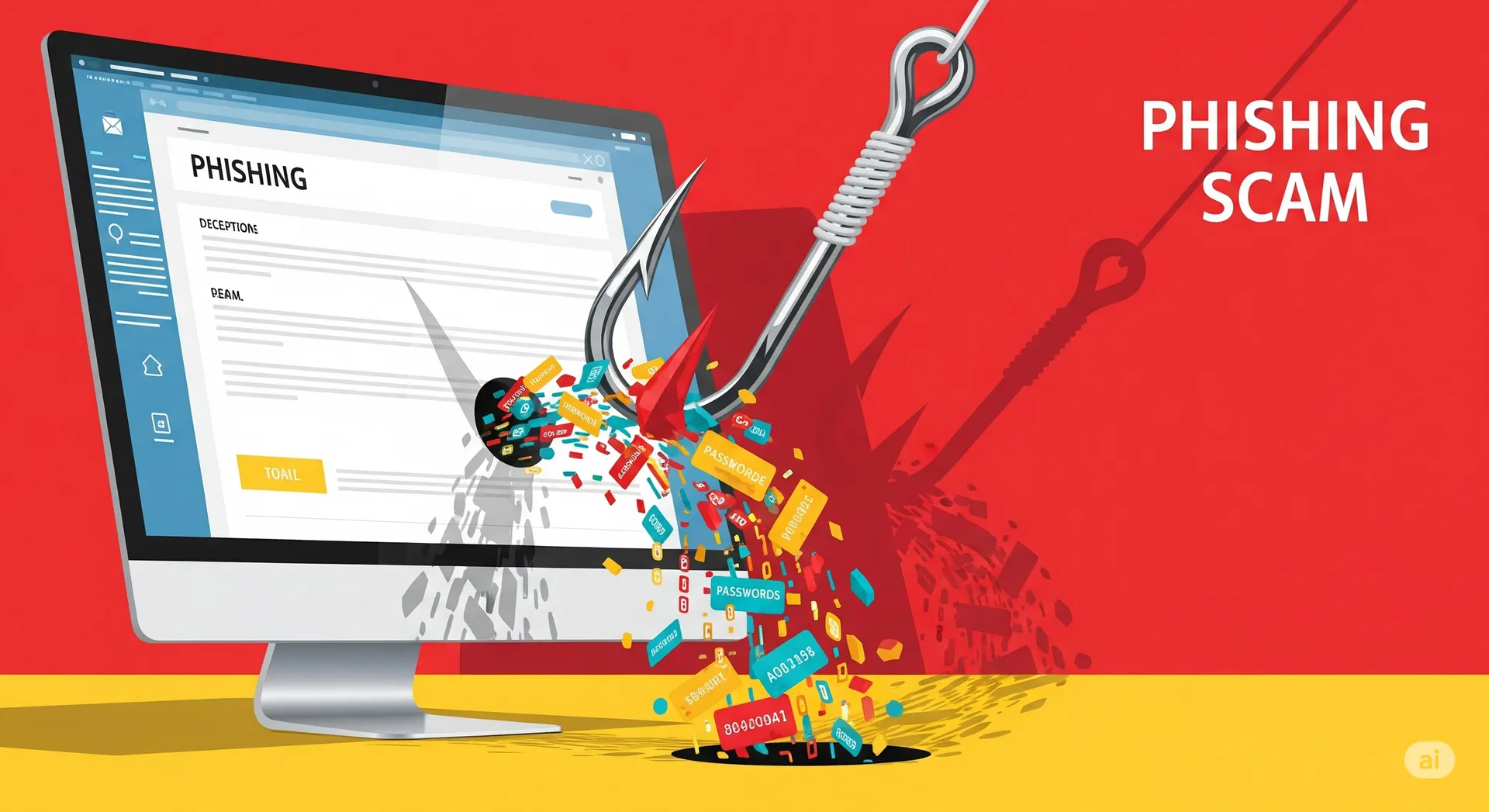
Most of the computers we see for virus removal and account recovery in Oceanside, Carlsbad, and Encinitas weren’t compromised by some elite hacker. They were compromised by a reused password, an unguarded inbox, or a single tap on a link that looked legitimate. The fix, almost always, is upstream: better habits before something goes wrong.
This guide is our practical adaptation of Andrej Karpathy’s excellent “Digital Hygiene” post. We’ve trimmed it for everyday users and small business owners — no command line, no jargon. Pick the items that fit your life and work down the list. Even doing the first three drops your risk dramatically.
1. Get a password manager (today, not later)
If you remember your passwords, they’re not strong enough. Reusing one strong password across sites is almost as bad — when one site gets breached, attackers try that password everywhere else.
What to do:
- Install a reputable password manager (1Password, Bitwarden, or your browser’s built-in one as a starting point).
- Let it generate a unique, long, random password for every account.
- Memorize one strong master password. That’s it.
This single change shuts down the most common way regular people get hacked.
2. Turn on two-factor authentication — and prefer hardware keys
Two-factor authentication (2FA) means logging in requires your password plus something else. The order of preference, from worst to best:
| Method | Notes |
|---|---|
| SMS text codes | Better than nothing, but vulnerable to SIM-swap attacks. |
| Authenticator apps (Authy, Google Authenticator) | Big upgrade. Use these wherever possible. |
| Hardware security keys (YubiKey) | The gold standard. A physical key that plugs into your computer or phone. |
If you have a few accounts that really matter — email, bank, password manager — buy two hardware keys (one to use, one as a backup stored somewhere safe) and enroll both.
3. Treat your email like the master key it actually is
Your inbox is where every “forgot password” reset link lands. If someone gets into your email, they can take everything else.
- Use 2FA on your email. Hardware key if possible.
- Never click links in emails. If your “bank” emails about a problem, open a new tab and type the bank’s address yourself.
- Disable automatic image loading — tracking pixels confirm to senders that your address is active and being read.
4. Encrypt your laptop
If your laptop is lost or stolen and the drive isn’t encrypted, every file on it — tax returns, photos, saved logins, business records — is readable by anyone.
- Mac: Turn on FileVault (System Settings → Privacy & Security → FileVault).
- Windows: Turn on BitLocker (Pro editions) or Device Encryption (most modern Windows 11 laptops).
It takes one click and runs in the background. There’s no excuse to skip this.
5. Use Signal for sensitive conversations
Standard SMS and most chat apps leak metadata even when the messages themselves are encrypted. Signal is the simplest, most trusted private messenger:
- Free, runs on iPhone and Android.
- End-to-end encrypted by default.
- Turn on disappearing messages (we suggest 90 days) so old conversations don’t pile up forever.
You don’t need to move everything to Signal — just the conversations that would actually matter if they leaked.
6. Lock down online payments
Every merchant you give your card number to is a place that card can leak. A simple fix:
- Use a service like Privacy.com to generate a unique virtual card number for each online merchant.
- Set a per-merchant spending limit (e.g., $20/month for a streaming service).
- If one site gets breached, you pause that one card. Your real number is never exposed.
For routine purchases, Apple Pay and Google Pay also hide your real card number from the merchant.
7. Be skeptical of “smart” everything
Smart TVs, smart speakers, smart fridges, smart thermostats — most of these devices are poorly secured, rarely updated, and built around collecting data on you. A few rules:
- Don’t connect things to the internet unless you genuinely need the connected feature.
- For things you do connect, put them on a guest Wi-Fi network so they can’t see your computers and phones.
- Pay attention to which apps and services you’ve granted microphone or camera access — and revoke ones you no longer use.
8. Browse with privacy as the default
The browser is where most tracking happens. A reasonable upgrade path:
- Switch to a privacy-focused browser like Brave (Chromium-based, blocks ads and trackers by default), or stay on Chrome/Safari with a strong content blocker installed.
- Try a privacy-respecting search engine like Brave Search or DuckDuckGo as your default.
- Add NextDNS or a similar DNS-level blocker to filter ads and trackers across every device on your network — including the ones (smart TVs, phones) where browser extensions don’t reach.
9. Do a quarterly cleanup
Set a reminder once a quarter to spend 30 minutes on:
- Reviewing which apps have access to your Google/Apple/Microsoft account and revoking ones you don’t use.
- Deleting old accounts you no longer need (every dormant account is a future breach waiting to happen).
- Updating your operating system, browser, and password manager.
- Confirming your important accounts still have working 2FA enrolled.
When prevention fails
Even with all of this, things go wrong. A click at the wrong moment, a phone left in a Lyft, a strange popup that won’t go away. If you suspect your computer has been compromised — odd browser behavior, unexpected pop-ups, programs you didn’t install, ransom messages — stop using it for anything sensitive.
That’s where we come in. PC Repair Center runs professional virus and malware removal, account-recovery assistance, and security setup at our Oceanside, Carlsbad, and Encinitas locations. We’ll clean the machine, help you re-secure your accounts, and walk you through setting up the items above so the same thing doesn’t happen twice.
Digital hygiene isn’t paranoia. It’s the same kind of routine maintenance you do on your car or your home — small habits that quietly prevent much larger problems.