Repair Any Computer: When to DIY and When to Call a Pro
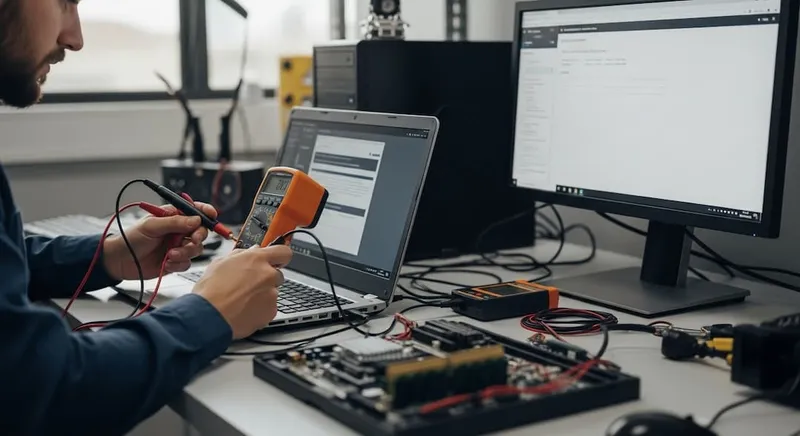
Almost every computer problem has a DIY answer on the internet. Some of that advice will save you a trip to the shop. Some of it will make things worse — or even total your machine. After years of fixing PCs, laptops, and Macs in our Oceanside and Encinitas shops, here is the honest version: a symptom-by-symptom guide to repair any computer safely, and the clear signs that you should stop and hand it to a professional.
The golden rule: data first, repair second
Before you open anything, unplug anything, or run any “cleaner” tool, ask one question:
If this repair fails right now, do I have a current backup of everything I care about?
If the answer is no, stop. Your first action should be backing up, or getting the drive to someone who can. The failures that destroy data are almost never the original problem — they’re the second step someone takes trying to fix the first one. Our data recovery service handles hundreds of these every year.
Safe DIY repairs for most people
These are low-risk, high-reward fixes. If a computer is acting up, it is reasonable to try these before paying anyone:
- Full restart and update. Genuinely fixes more problems than any paid tool. Restart the machine, then run Windows Update or macOS Software Update.
- Clear disk space. If your drive is over 90% full, everything gets slow. Empty the Recycle Bin / Trash and remove large unused files or apps.
- Disable heavy startup programs. Task Manager → Startup (Windows) or System Settings → General → Login Items (Mac).
- Run a reputable on-demand malware scan. Malwarebytes Free is a sensible second opinion alongside your built-in antivirus.
- Physical clean. Compressed air on vents, fans, and keyboards. Dust is a huge cause of overheating.
- Check the cable. A surprising number of “dead” desktops and monitors are loose power cords or HDMI cables.
If any of those resolves the issue, congratulations — you saved a bill.
Yellow-zone: DIY with caution
You can do these, but the risk of making things worse is real. Only attempt them if you are comfortable following a teardown video carefully, have the right tools, and already have a backup.
- RAM upgrade on a desktop or a user-serviceable laptop. Straightforward if the slot is accessible and you match the spec.
- SSD swap in a desktop. Cloning tools like Macrium Reflect or Samsung Data Migration make this achievable for a patient user.
- Laptop battery replacement on models with accessible batteries.
- Reseating a GPU if you’re getting display flicker on a desktop.
- Full OS reinstall from a known-good USB installer. It works, but you must have everything backed up — this wipes the drive.
If you hit something unexpected here — stripped screws, a connector that won’t reseat, a clone that won’t boot — this is the moment to stop and bring it in, not the moment to keep going.
Red-zone: please do not DIY
These repairs consistently turn small bills into large ones when they go wrong:
- Laptop screen replacement on most modern laptops (bezels are glued, LCDs crack with light pressure). See our laptop screen repair service.
- Liquid damage of any kind. Rice does not work, and time is the enemy. Pros ultrasonically clean the board before corrosion spreads.
- Anything involving soldering — charging ports, HDMI ports (including PS5 HDMI port repair), motherboard components.
- MacBooks and modern ultrabooks. They are not built to be opened by hand. Battery pull tabs tear, ribbon cables shear, and Apple logic boards are unforgiving.
- “Clicking” or unrecognized hard drives. Every power cycle reduces your recovery odds. Send it to data recovery San Diego instead.
- Boot loops after a Windows update that you’ve already tried safe mode on. Keep going and you’ll often take out the user profile.
A quick decision guide by symptom
- Computer runs slow → Try the DIY list first. If it’s still slow after updates, cleanup, and a malware scan, book a computer tune-up or an SSD upgrade — the single biggest real-world speedup.
- Won’t turn on, no lights at all → Check cable and power strip. Beyond that, get a desktop or laptop repair diagnosis — power supplies and motherboards are not a DIY guess.
- Turns on, no display → Reseat RAM and video cable. Still dead? Stop. Probably a GPU, RAM, or board issue.
- Blue screen / kernel panic on startup → Note the error code. A single crash is fine to ignore; a pattern is not. Repeated BSODs usually mean RAM, storage, or driver issues.
- Fans constantly maxed out → Dust and thermal paste. DIY cleaning is fine; repasting is yellow-zone.
- Cracked or flickering screen → Red zone. Get a quote before you take the laptop apart.
- Pop-ups, browser hijack, ransomware → Disconnect from the network immediately. Try a scan, but if anything is encrypted, stop. Virus removal has specialized tools for this.
- Drive clicking, not recognized, or “needs to be formatted” → Power it down. Data recovery first.
When it is always worth paying a pro
There are three situations where the smart answer is effectively never DIY:
- The data on that drive is irreplaceable. Photos, business records, research. One mis-step erases it.
- The machine is out of warranty and you can’t afford to replace it if the repair fails. Let someone else carry that risk.
- You’ve already tried once and it got worse. That’s your signal. The second fix is always more expensive than the first.
Getting a real answer, cheaply
If you are on the fence, you do not have to commit to a repair to find out what’s wrong. Our free pre-check tells you whether it’s a five-minute problem or something serious before any billable work begins. If a full diagnostic is needed it’s $69, and it’s fully credited toward the repair (waived when you approve).
Bring your PC, Mac, or laptop to our Oceanside or Encinitas shop and we’ll give you an honest answer — including “don’t repair this, buy a new one” when that’s the right call. Contact us or get an instant quote.