Startup Repair Couldn't Repair Your PC — Fix Guide
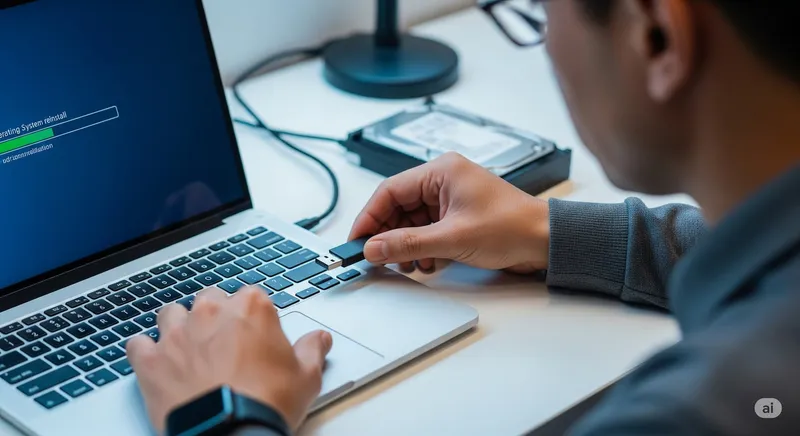
You boot your PC and instead of the desktop you get a blue screen that reads:
“Startup Repair couldn’t repair your PC” — or — “Automatic Repair couldn’t repair your PC”
…followed by two buttons: Shut down or Advanced options. Clicking either one loops you right back to the same message. This post walks through exactly what’s happening, the fixes that actually work (in the order that’s least likely to make things worse), and the warning signs that it’s time to stop and bring it to a professional in Oceanside, Encinitas, or Carlsbad.
First: don’t panic, and don’t reset
The most tempting button on that screen is “Reset this PC”. On some failure modes it works fine. On others — especially when the underlying issue is a failing drive or corrupted user profile — it will delete your files while trying to “fix” the problem.
Two rules before you touch anything:
- Do not click “Reset this PC” yet. It is a last resort, not a first one.
- Assume your data is at risk. If the files on this machine matter at all, the very first successful boot you get (even into safe mode or a recovery USB) should be used to copy them somewhere else.
If the machine won’t boot at all — no Windows logo, just the repair screen — you can still pull the files off using a recovery USB or by removing the drive. Our data recovery service handles exactly this situation every week.
What the error actually means
The blue “Startup Repair couldn’t repair your PC” screen is Windows telling you that its own repair tool gave up. It’s not the original problem. The original problem is usually one of these:
- A corrupted boot configuration (BCD). Very common after a failed Windows update, a sudden power loss, or imaging/cloning a drive.
- Corrupted system files. A driver, system DLL, or registry hive is damaged.
- A failing storage drive. Bad sectors on the SSD or HDD where Windows lives.
- A user profile corruption. The boot works; your profile can’t load.
- A bad Windows update. A recent cumulative update is conflicting with your hardware.
- Disk encryption issues. Device Encryption or BitLocker got out of sync with the TPM after a motherboard/BIOS change.
Each of these has a different fix. Doing the wrong fix for the wrong cause is how “Startup Repair couldn’t repair your PC” turns into “all my files are gone.”
Step 1 — Try the safe recovery options first (no data risk)
From the repair screen, click Advanced options → Troubleshoot → Advanced options. You’ll get a menu. Work top to bottom, and stop as soon as something works.
1a. Startup Settings → Safe Mode
- Advanced options → Startup Settings → Restart → press 4 for Safe Mode (or 5 for Safe Mode with Networking).
If Safe Mode boots, you’re in a good position. You can now:
- Back up your files to an external drive or cloud.
- Uninstall the last Windows Update (Settings → Update & Security → View update history → Uninstall updates).
- Remove a recently installed driver or program.
- Run
sfc /scannowfrom an admin Command Prompt.
If Safe Mode boots cleanly and a normal boot still fails, you usually have a driver or software conflict — not a hardware problem. That’s a great outcome.
1b. System Restore
- Advanced options → System Restore.
If System Restore points exist, rolling back to one from before the problem started is the single highest-success, lowest-risk fix available. It does not touch your personal files — only system state.
1c. Uninstall Updates
- Advanced options → Uninstall Updates → Uninstall latest quality update.
If “Startup Repair couldn’t repair your PC” appeared right after Patch Tuesday, this is a top suspect. Microsoft’s cumulative updates occasionally break specific hardware combinations for a few days. Uninstalling the latest quality update is a reversible fix.
Step 2 — Command Prompt fixes (moderate risk)
If none of the above worked, go to Advanced options → Command Prompt. These commands are safe for your data but will change boot-time settings — run them in order and write down any errors before moving on.
bootrec /fixmbr
bootrec /fixboot
bootrec /scanos
bootrec /rebuildbcd
If bootrec /fixboot returns “Access is denied” (common on UEFI systems), that means your boot partition needs to be accessed directly:
diskpart
list disk
select disk 0
list partition
select partition 1      (the EFI/System partition, usually small ~100 MB)
assign letter=Z
exit
cd /d Z:\EFI\Microsoft\Boot\
bootrec /fixboot
bcdboot C:\Windows /s Z: /f UEFI
Then reboot. For most boot-configuration issues, that’s the fix.
While you’re at a command prompt, it’s also worth running:
sfc /scannow /offbootdir=C:\ /offwindir=C:\Windows
chkdsk C: /f /r
Important: chkdsk /r is where things can get risky. On a failing drive, the long surface scan can actually accelerate failure and reduce recovery odds. If your drive is making clicking or ticking noises, or if Windows has been slow for weeks before this, skip chkdsk and back up first.
Step 3 — BitLocker / Device Encryption
If you’re on a modern laptop (especially HP, Dell, Lenovo business, or any Windows 11 machine), there’s a decent chance your drive is encrypted even if you never set that up. Signs of this:
- You’re asked for a recovery key when you try to boot.
bootreccommands finish without errors but Windows still won’t start.
The recovery key is tied to your Microsoft account. Log in from another device at aka.ms/myrecoverykey and grab it before doing anything else. If you can’t find the key, do not wipe the drive — the data is effectively gone at that point. This is a situation where a professional can sometimes still recover files by imaging the drive and working with the raw data.
Step 4 — When to stop trying
Bring the machine to us (or another trusted shop) if any of these are true:
- The drive clicks, ticks, or the machine takes 5+ minutes to reach the repair screen.
- You see the error “A required device isn’t connected or can’t be accessed” with a code like
0xc000000eor0xc0000185— that’s typically storage hardware failing. - Multiple
bootreccommands return access denied or “element not found” errors. - The repair loop started after a liquid spill, drop, or sudden shutdown.
- BitLocker is prompting for a key you don’t have.
- Your files on this machine are not backed up somewhere else.
At that point, continuing to experiment costs you nothing in Microsoft’s eyes — but every power cycle on a failing drive reduces the odds that a recovery shop can get your files back. Full stop.
Step 5 — The nuclear options
Only after you’ve either (a) backed up your files or (b) confirmed the data is expendable should you consider:
- Reset this PC → Keep my files. Works on some corruption scenarios; silently fails on others.
- Reset this PC → Remove everything. Wipes the drive.
- Clean install from a Windows 11 USB. Same effect — all user files gone unless they’re on OneDrive or an external backup.
There is a small but real class of failures where “Keep my files” thinks it preserved everything and quietly dropped a user-profile folder in the process. We see it every month. If it matters, back up first.
Our honest take
If “Startup Repair couldn’t repair your PC” came up after a Windows update and the machine has been fine before that, the steps above will almost always resolve it — and most people can do them in an hour with a little patience.
If it came up out of nowhere on an older machine, or the drive is making any kind of unusual noise, or the error codes point to hardware, stop. Bring it in. Our free pre-check in Oceanside, Encinitas, or Carlsbad will tell you whether the drive is healthy, whether your data is still intact, and whether a repair is worth it before you spend another night in the recovery menu.