PC Motherboard Repair: Signs It's Dead, Signs It's Fixable
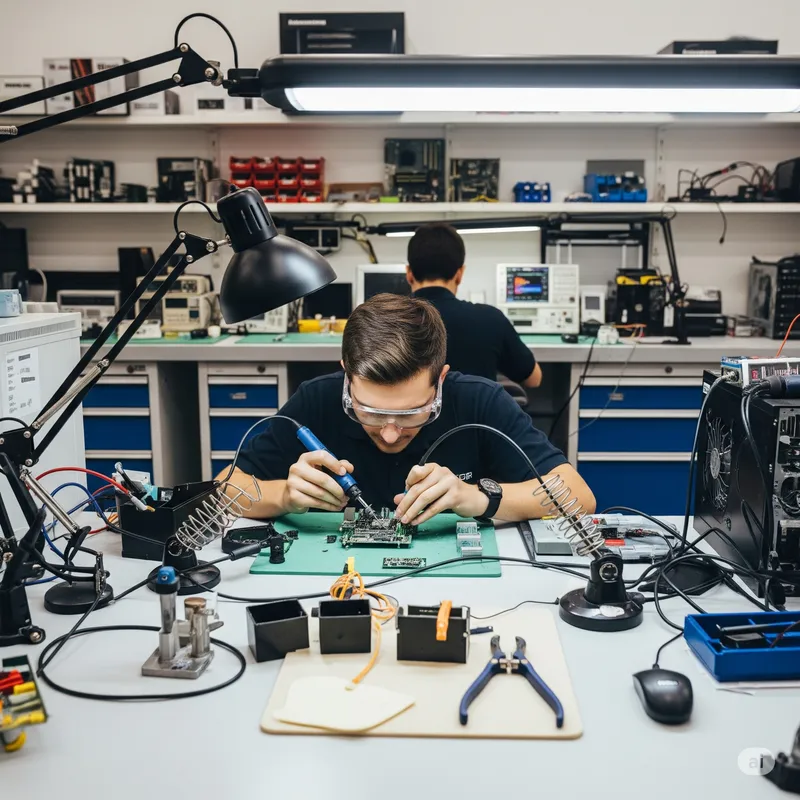
The motherboard is the one component in a PC that makes everyone nervous. CPUs, GPUs, and drives are modules you can swap. The motherboard is the board that connects them all together — and when it fails, the whole computer just stops. Here’s how to tell whether your motherboard is actually dead, which kinds of motherboard damage are repairable, and when replacement is genuinely the better call. Based on what we see every week at our Oceanside, Encinitas, and Carlsbad shops.
Symptoms that feel like a dead motherboard (but usually aren’t)
Before anyone tells you the board is bad, rule out the much-more-likely failures that look identical from the outside:
- PC won’t turn on at all. More often a bad power supply, a tripped surge strip, or (on desktops) a front-panel power-switch header that’s come loose.
- Turns on, no display. Commonly the GPU, the RAM not seated, or a bad HDMI/DisplayPort cable. Reseat RAM and GPU, swap the cable, try the motherboard’s onboard video if it has one.
- Boots, then cuts out seconds later. Usually thermal — dust-clogged CPU cooler, failing PSU under load, or thermal paste that’s dried out.
- Fans spin, no POST. Could be the CPU or RAM; rarely the board itself on the first attempt.
- Blue screens on boot. Almost always a software, driver, or storage issue.
Motherboards do die. But after years of diagnostic work, easily 70% of “dead motherboard” calls turn out to be a PSU, a stick of RAM, a CPU cooler, or a cable. That’s good news for your wallet — those are all cheaper to fix than a board.
Real signs of motherboard failure
If you’ve already ruled out power and RAM, these are the patterns that genuinely point at the board:
- No POST beep, no fans, no lights — and the PSU has been confirmed working on another system or with a PSU tester.
- Debug LEDs on a modern motherboard stuck on CPU, DRAM, VGA, or BOOT after you’ve tested known-good components for each.
- Capacitors that are bulged, leaking, or split open — visible on the top of the cylindrical caps near the CPU socket or VRM.
- Burnt smell, or visible scorching / discoloration around the VRMs, PCIe slot, or power connectors.
- Bent or missing CPU socket pins on Intel LGA boards (or bent pins on the CPU itself for AMD AM4).
- Ports that no longer work — USB ports stop responding in pairs (they share a controller), audio jacks go silent, or Ethernet loses link while everything else is fine.
- Random crashes that follow the motherboard — i.e., you swapped CPU, RAM, PSU, and GPU one at a time and the problem still persists.
- Post-surge or post-liquid-spill failure. Power surges and liquid damage hit the motherboard first.
One of those by itself is suggestive. Two or more almost certainly means the board.
Which motherboard failures are actually repairable
Not all motherboard damage is a total loss. Here’s what we can and cannot typically fix at the shop.
Fixable (in many cases)
- Blown or leaking capacitors. On older boards especially, recapping is straightforward and breathes years of life into a system.
- Broken USB / HDMI / DisplayPort / charging ports on desktops and laptops. This is micro-soldering work — we do it daily for laptops and game consoles (see PS5 HDMI port repair).
- Damaged DC jack on a laptop. Very common, very repairable.
- Dead BIOS / corrupted firmware. Many modern boards have BIOS Flashback; older ones can be reprogrammed with a CH341 programmer.
- Bent Intel LGA socket pins. Real surgery, but fixable on most of them with a steady hand and good lighting.
- Minor trace repair where a wire has been pulled or a connector torn off but the surrounding area is intact.
Not worth fixing
- Liquid damage that went corrosion-deep. Especially on a laptop that sat wet for more than a day or two.
- Full VRM burnout. By the time a VRM has visibly let go, the damage is usually spread across components and the cost exceeds replacement.
- Severe trace/board damage where multiple layers of the PCB have been affected.
- Chipset BGA failure on a laptop. Technically possible with reballing gear; economically almost never worth it on consumer boards.
- Any motherboard on a 7+ year-old budget laptop. Parts are expensive or unobtainable and the rest of the machine will follow within a year.
Our honest rule of thumb: if the repair would cost more than 50% of a sensible replacement — or more than 50% of the realistic resale value of the machine — it’s time to talk about moving on.
How a real motherboard diagnosis works
When you bring a “motherboard” in, this is roughly how it goes:
- Visual inspection under magnification. Blown caps, burnt VRMs, scorched spots, bent pins, and liquid residue are all visible before anything gets plugged in.
- Power sequencing check. We confirm the PSU is delivering correct voltages and that the board is reaching the first power stages. A bench PSU and a scope do most of the work here.
- Minimum POST configuration. CPU + one stick of known-good RAM, no GPU, no drives. Debug LEDs and POST codes tell us exactly which subsystem is refusing to come up.
- Component swap. Each variable gets substituted with a known-good part. If the problem travels with the board, it’s the board.
- Schematic + boardview on laptops. For laptop and console repair we use schematics and boardview software to trace the exact short or open circuit.
Most diagnoses take us 30–60 minutes. That’s why our free pre-check can often tell you it’s not the motherboard in the first phone call — saving you from a quote that scares you for no reason.
Desktop vs laptop: different conversations
Desktop motherboards
On a desktop, replacement is almost always viable. A mid-range consumer board costs $120–$250, and unless it’s a very specific platform (older HEDT sockets, old server boards), you can drop in a compatible replacement in an hour and keep using the same CPU, RAM, drives, and GPU.
That means the repair-vs-replace math is simple:
- Repair if: the board is recent, expensive, or a specific model you want to keep, and the failure is narrow (one port, blown caps, a single damaged component).
- Replace if: the board is older than a couple of CPU generations, or the damage is widespread.
Most of our desktop motherboard customers end up on the “replace” path — it’s just cheaper and gets them working faster.
Laptop motherboards
Laptop boards are almost never user-replaceable — they’re specific to one model, and a replacement board can run $300–$800+ before labor. This is where repair often does win:
- A $60 charging port replacement vs. a $500 board swap.
- A $120 liquid-damage clean-and-test vs. a $600 board replacement that still leaves the chassis damaged.
- A free diagnosis that reveals it’s actually just RAM — saving the whole thing.
If you’re being quoted a new logic board on a MacBook or a full replacement on a modern ultrabook, it’s always worth a second opinion from someone who does component-level work.
When to stop troubleshooting yourself
Call the shop (ours or any other reputable one) when:
- The board looks physically burnt, swollen, or has any smell to it. Stop using it.
- You’ve already swapped PSU, RAM, and CPU (if you have spares) and still get no POST.
- There was a power surge, liquid spill, or the machine fell. Time-to-diagnosis matters with liquid.
- You’re being asked to buy a replacement board for a laptop and you haven’t gotten a component-level opinion.
- It’s a business or gaming machine you can’t afford to experiment with — get it diagnosed properly rather than swapping parts on guesses.
A short checklist before you give up on the board
Before you decide it’s dead:
- Try a different wall outlet and a known-good power cable.
- Unplug everything from the motherboard except CPU + one stick of RAM in the primary slot. Power on.
- Clear CMOS (remove the coin battery for 60 seconds, or use the clear-CMOS header).
- Reseat the 24-pin and 8-pin CPU power connectors — they’re surprisingly easy to leave loose.
- If it’s a laptop, try booting with the battery removed, on charger only.
If none of that wakes it up, you’ve earned a real diagnosis. Bring it to our Oceanside, Encinitas, or Carlsbad shop for a free pre-check — we’ll tell you whether it’s the board, whether it’s repairable, whether it’s worth repairing, and what the honest cheapest path back to a working computer is.
- Desktop repair service
- Laptop repair service
- Micro-soldering / PS5 HDMI port repair (same component-level workflow)
- Related: Repair Any Computer: DIY vs Call a Pro, Startup Repair Couldn’t Repair Your PC, How to Fix a Slow PC
- Get an instant quote or contact us