Liquid-Damaged Laptop: What To Do in the First 24 Hours
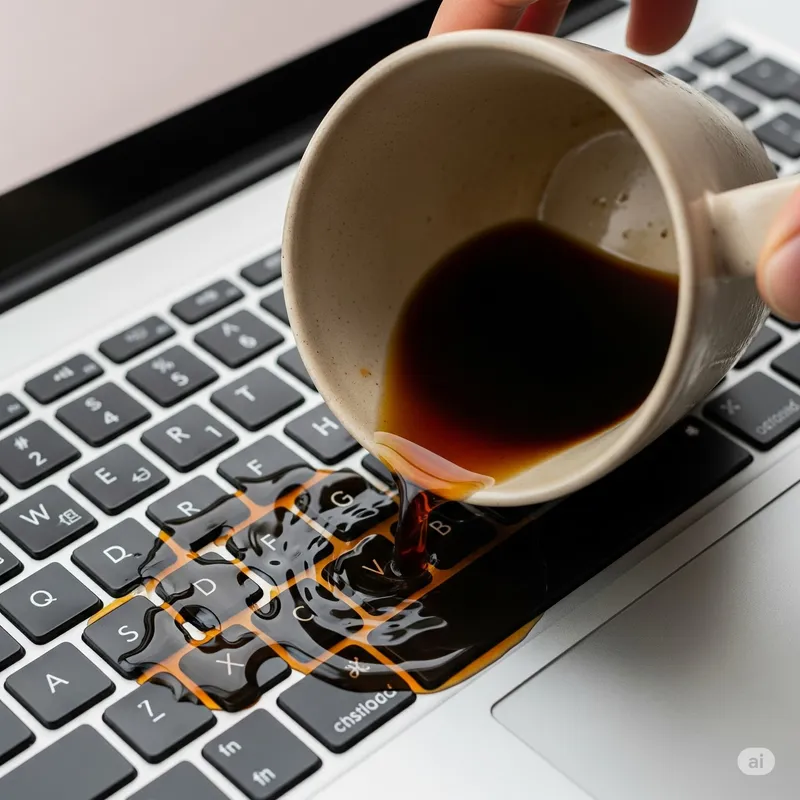
A coffee mug goes over. A glass of water tips on the nightstand. A kid’s juice lands right on the keyboard. Water, coffee, soda, beer, saltwater — every week we see laptops at our Oceanside, Encinitas, and Carlsbad shops that could have been saved if the first 24 hours had gone differently. Here is exactly what to do — and what not to do — when liquid hits your laptop.
The single most important rule
Power it off immediately. Not shut down. Not “save my work first.” Hold the power button for 10 seconds until it powers off.
Liquid on the inside of a laptop isn’t what kills it. Liquid on the inside of a laptop that’s still receiving power is what kills it. Every second the board is energized while wet, you’re creating short circuits and electrochemical corrosion that can’t be undone later. Powering it off in the first 30 seconds is the single highest-leverage thing you’ll do all day.
Step-by-step: the first 10 minutes
1. Power off (seconds 0–10)
Hold the power button until it’s fully off. If the laptop was plugged in, unplug it second, not first — the battery is still live.
2. Unplug the charger (seconds 10–15)
Remove the charger. Unplug any USB devices, dongles, external drives.
3. Remove the battery if possible (seconds 15–60)
On older laptops with a removable battery latch — slide it off. On modern sealed laptops, skip this step; do not start unscrewing anything yet.
4. Flip it upside down over a towel (minute 1)
Open the laptop to roughly 90° (like an upside-down V) and place it screen-down on a clean, dry towel. Gravity pulls liquid toward the keyboard and out, rather than down into the motherboard.
5. Turn off Wi-Fi confidence, call the shop (minutes 2–10)
While the laptop drips, this is the right moment to call a repair shop. Time matters for liquid damage. Every hour that passes with liquid inside is corrosion progressing. Our Oceanside, Encinitas, and Carlsbad locations all handle liquid damage on a same-day basis when capacity allows.
Do this — in the first 24 hours
- Let it sit upside-down on a towel for 24–48 hours only if you can’t bring it to a shop right away. Gravity is your friend.
- Move it into a dry, climate-controlled room — not a garage, not a bathroom.
- Note the liquid type. Coffee, soda, juice, saltwater, and beer are all worse than plain water because of sugar, acid, or salt. Tell the shop.
- Back up any external drive you were working with. (Your laptop’s drive may still be fine; the external might have gotten splashed too.)
- If it was on the charger when it got hit, inspect the charger. If liquid got inside the charger, don’t reuse it — replace.
Do NOT do any of these
Do not turn it back on “to see if it still works”
This is the #1 thing that turns a $150 clean-and-test into a $600 board replacement. Every minute of power on a wet motherboard is an accelerator on corrosion. Even if it boots, you’re still killing it. There is no “maybe I got lucky” — you find out at the shop, not by gambling with power.
Do not put it in rice
Rice is a myth. It is marketed so heavily that everyone’s parents have heard of it. It does not work. Here’s why:
- The amount of water rice can pull out of an enclosed laptop is negligible compared to what’s already inside.
- Rice dust gets inside the ports and vents, which later causes its own problems.
- Meanwhile, corrosion is happening on the board — rice does nothing to stop it.
What actually dries out the inside of a laptop is time, warm airflow, and professional disassembly. Not a bowl of grains.
Do not use a hair dryer, oven, or heat gun
Heat at this stage:
- Forces remaining liquid into places it wasn’t yet, often through seams between the LCD and the bezel.
- Damages the plastic chassis and LCD long before it meaningfully dries anything internal.
- Cooks sugar residue from coffee or soda onto the board in a way that’s much harder to clean later.
Room-temperature airflow is fine. Anything you’d describe as “warm” is not.
Do not shake it or tilt it violently
You want gravity to do slow, predictable work. Sloshing the liquid spreads it into new components that might have been dry.
Do not remove screws yourself unless you know what you’re doing
Once a laptop has had liquid inside, the proper fix is:
- Full disassembly.
- Disconnect the battery from the motherboard (very important — the board is still live even if “off”).
- Ultrasonic bath the motherboard in an isopropyl alcohol solution.
- Inspect under magnification for corrosion.
- Clean corrosion manually with fiberglass brushes and concentrated IPA.
- Dry under controlled heat.
- Test power sequencing on a bench.
- Reassemble and functionally test.
That’s a 2–4 hour process with specialized tools. DIY attempts usually result in partial disassembly, some liquid removed, and the rest still corroding underneath the heatsink and keyboard.
What liquid does to a laptop — the honest version
- Water (tap or bottled): Best-case scenario. Dries relatively cleanly. If powered off fast and cleaned within a day or two, often fully recoverable with just a board clean.
- Coffee / tea / juice: Sugar + acid. The acid eats copper traces; the sugar leaves a conductive residue that causes intermittent failures later. Needs proper cleaning.
- Soda: Same as coffee but worse. High sugar + phosphoric acid.
- Beer: Moderate — less acidic than soda, but the hop residue is sticky.
- Saltwater / pool water / seawater: Worst. Salt is extremely conductive and highly corrosive. In a coastal town like Oceanside this is the one we see most often. Act within hours, not days.
- Urine (surprisingly common — kids, pets): Salt + ammonia. Treat like saltwater. Don’t be embarrassed; we’ve seen it.
The honest cost picture
If you follow the “power off, don’t turn on, bring it in fast” playbook, the typical repair path is:
- Same-day water spill, powered off immediately, brought in within 24 hours: Usually a $120–$220 clean-and-test.
- Coffee / soda spill, powered off, 24 hours elapsed: Clean-and-test plus some component work, $180–$350.
- Saltwater or sugary liquid, “tried to turn it back on,” multiple days elapsed: $400–$700+ or a board replacement conversation. Sometimes not recoverable.
- Water under an already-cracked screen or over an already-damaged chassis: ask for a combined quote.
A clean-and-test is always cheaper than a logic board replacement. And both are cheaper than data recovery from a machine that’s now a paperweight.
About your files
Even on laptops that are economically unrecoverable, the drive is usually fine. The drive lives in its own shielded enclosure, and liquid doesn’t usually reach it. If the laptop is totaled, we can pull the drive, image it, and either return your files on an external or install them into your new machine.
See our data recovery service — liquid-damaged laptops are one of the most common sources of “my laptop is dead, can you get my pictures?” cases we handle.
The one-screen version
- Power off in seconds.
- Unplug charger, remove battery if possible.
- Flip upside down on a towel.
- Bring it in — same day, or at worst next day.
- No rice. No hair dryer. No “let me check if it still turns on.”
The laptops that come back to life after a spill are almost always the ones whose owners did those five things in the first 30 minutes. Call ahead to our Oceanside, Encinitas, or Carlsbad shop — we can usually take a look the same day.
- Laptop repair service
- Data recovery — for when the laptop is gone but the files matter
- Micro-soldering / board-level repair (same workflow used on liquid-damaged boards)
- Related posts: 10 Most Common Computer Problems (#6 liquid spills), PC Motherboard Repair, Repair Any Computer: DIY vs Call a Pro
- Get an instant quote or contact us