10 Most Common Computer Problems (and When to Call a Pro)
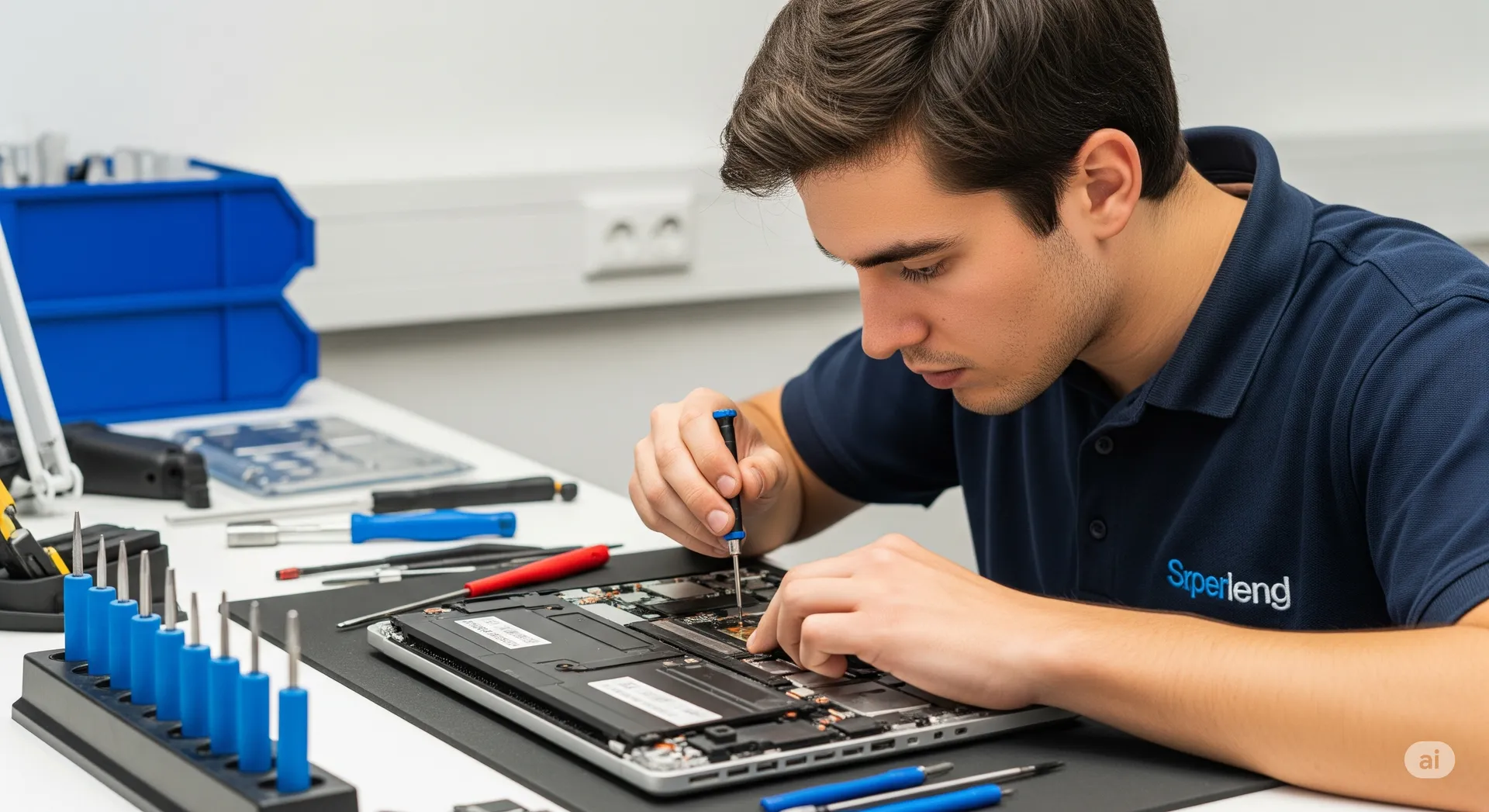
After years of running computer repair shops in Oceanside, Encinitas, and Carlsbad, a remarkable pattern shows up: 90% of what walks through the door falls into the same ten problems. Here they are, in the rough order we see them, with honest advice on what you can try yourself and the exact point at which DIY becomes more expensive than the repair.
1. “It’s just slow”
By far the most common complaint. Usually one (or more) of:
- A spinning hard drive the computer has outgrown.
- Disk space under 10% free.
- Too many browser tabs and startup programs.
- Quiet malware running in the background.
- Dust-clogged cooling → thermal throttling.
Try first: Restart, run updates, clean out startup apps, free up disk space, run a Malwarebytes scan.
Call a pro when: You’ve done all that and it’s still slow. 9 times out of 10 the fix is an SSD upgrade or a computer tune-up. Full walkthrough: How to Fix a Slow PC.
2. “It won’t turn on”
Before anything else: try a different outlet and a known-good power cable. It fixes more cases than you’d think.
Beyond that, the order of suspicion is:
- Desktop: power supply → front-panel switch → motherboard.
- Laptop: charger → DC jack / charging board → battery → motherboard.
Try first: Different outlet. Different cable/charger. On a desktop, unplug everything from the motherboard except CPU and one RAM stick, then test.
Call a pro when: There’s no life at all after the easy checks. Power supplies and charging boards are cheap; guessing isn’t.
Related: PC Motherboard Repair: Signs It’s Dead, Signs It’s Fixable.
3. Blue screen / kernel panic
A single crash is almost never a real problem. A pattern of crashes is.
Look for:
- BSOD after a recent Windows update → roll back the update.
- BSOD right after a new driver (printer, graphics, VPN) → uninstall it.
- Recurring BSOD with no pattern → RAM or failing storage.
- Mac kernel panic on every boot → usually a bad driver or a failing internal SSD.
Try first: Note the exact error code. Boot into safe mode and see if it still happens.
Call a pro when: Crashes happen in safe mode (that’s a hardware signal) or the system is stuck in a startup repair loop.
4. Pop-ups, redirects, hijacked browser
Almost always a browser extension or a “cleaner” program the user didn’t realize was malicious.
Try first: The full virus removal walkthrough — extensions → Malwarebytes in safe mode → AdwCleaner → Defender offline scan.
Call a pro when: Your antivirus keeps finding the same threat after every reboot, or a “Microsoft support” call led to remote access on your machine. That’s a real virus removal case and often a full account/password reset too.
5. Broken or cracked laptop screen
You dropped it, closed the lid on a pen, or the hinge finally cracked the panel.
Try first: Plug in an external monitor via HDMI to confirm the rest of the machine is fine. If the external display works perfectly, it’s just the panel.
Call a pro when: Almost always. A broken laptop screen is one of the repairs where DIY reliably goes wrong — glued bezels, crushed ribbon cables, and $180 panels that arrive already cracked. See our laptop screen repair service.
Related: Dead Pixel on Your Laptop? How to Fix It or Replace the Screen.
6. Liquid spill
Coffee, soda, or — in San Diego — often a pool splash on a laptop.
Try first (order matters):
- Power off immediately — hold the power button if you must. Liquid + power = short circuits.
- Unplug the charger and remove the battery if it’s removable.
- Flip it upside down to drain.
- Do not rice, hair-dryer, or oven it. These don’t work and the heat damages the board.
- Bring it in within 24–48 hours. Time is the enemy — corrosion starts immediately.
Call a pro when: Always, if anything electrical was wet. A proper board-level clean inside an ultrasonic bath and before corrosion spreads is the difference between a $100 clean-and-test and a $600 logic-board replacement.
7. “It won’t connect to Wi-Fi”
Usually not a computer problem.
Try first:
- Other devices working on the same Wi-Fi? If yes, it’s the computer. If no, it’s the router.
- Reboot the router, then the computer.
- Windows: Settings → Network & internet → Advanced network settings → Network reset.
- Forget the network and reconnect with the password.
Call a pro when: Other devices are fine, you’ve reset network settings, and the laptop still can’t see any networks. That’s usually a failing Wi-Fi card (cheap on most laptops) or a driver conflict we can resolve in half an hour.
8. Overheating / fans running flat-out
A 3-year-old laptop has never been cleaned internally and sits on a bed. Both of those are fixable.
Try first:
- Elevate the laptop — even on a book — so the intake can breathe.
- Blow out the exhaust vent with compressed air. Don’t use the blower to spin the fans in reverse (tears the bearings).
- Check Task Manager for a single runaway process (especially a hidden crypto-miner or Chrome tab).
Call a pro when: It still runs hot after cleaning. Older machines need the thermal paste between CPU and heatsink replaced — that’s a shop job, not a DIY one.
9. Can’t log in / corrupted user profile
Windows has been around long enough that user profiles sometimes just break. The classic symptoms: the login screen accepts your password and then immediately logs you back out, or you get “We can’t sign in to your account” / “You’ve been signed in with a temporary profile.”
Try first:
- Restart once.
- Boot into safe mode and try again.
- If you have another admin account on the PC, log in there and create a new profile.
Call a pro when: You only have one account and neither safe mode nor recovery works. The files are still there on the drive in almost every case, but the standard “Reset this PC” often deletes them. This is the one where people most often lose data trying to fix it themselves. Our data recovery service handles these regularly.
10. Printer / scanner / peripheral not working
Not really a “computer problem,” but we hear it constantly.
Try first:
- Power-cycle the printer. Off, unplug for 60 seconds, plug in, on.
- Remove and re-add it in Windows / macOS printer settings.
- Reinstall the driver from the manufacturer’s site, not Windows’ generic one.
- USB cable or wireless? Try the opposite.
Call a pro when: The printer works from a phone but not from your PC, and reinstalling drivers hasn’t fixed it. Often a Windows service or permission issue that’s 20 minutes in the shop.
What all ten have in common
Two themes show up over and over:
- Most “dead” computers aren’t dead. They’re misdiagnosed because the real problem looks identical to something far worse. Power supply vs. motherboard. RAM vs. CPU. Driver vs. BSOD.
- Trying the expensive fix first is how things get expensive. The universal order is: software → settings → drivers → cheap hardware (cable, RAM, PSU) → expensive hardware (motherboard, board-level). Jumping straight to the end is a quick way to spend money you didn’t need to.
Our free pre-check exists exactly for this reason. Bring the machine to any of our shops in Oceanside, Encinitas, or Carlsbad and we’ll tell you — before any billable work — which of the ten it is, which fix it needs, and what it will honestly cost. If it’s something you can fix yourself in 15 minutes at home, we’ll tell you that too.
- Computer tune-up
- Desktop repair / Laptop repair
- Virus removal
- Data recovery
- Related posts: How to Fix a Slow PC, How to Remove a Virus From Your Computer, PC Motherboard Repair, Dead Pixel on Your Laptop, Startup Repair Couldn’t Repair Your PC, Repair Any Computer: DIY vs Call a Pro
- Get an instant quote or contact us