Gaming PC Repair: The 8 Most Common Issues (and How We Fix Them)
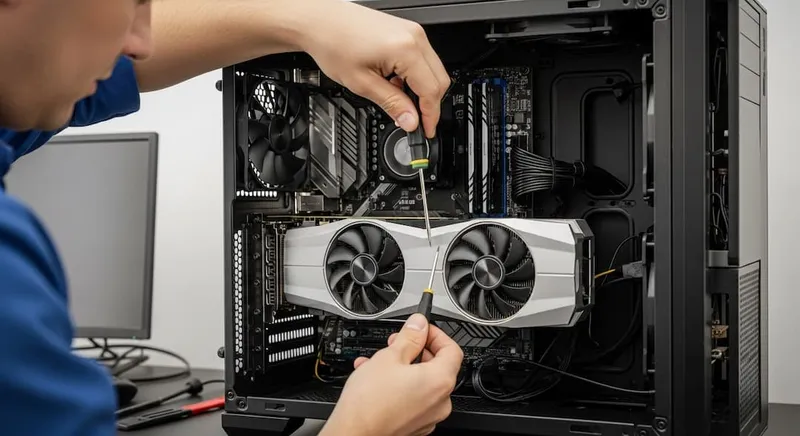
Gaming PCs fail differently than office computers. The parts are more expensive, the thermal loads are higher, and the symptoms are usually “it worked yesterday and now the game won’t run” rather than a clean BSOD on a login screen. Here are the 8 most common gaming PC repair cases we see at our Oceanside, Encinitas, and Carlsbad shops — in order of frequency, with what you can try yourself and when to bring it in.
1. GPU crashes mid-game (driver timeout / TDR)
Your screen goes black for a few seconds, recovers, and Windows shows “Display driver stopped responding and has recovered.” This is the single most common gaming PC call we get.
What causes it
- Old or conflicting GPU drivers (by far the most common).
- Undersized power supply — especially after a GPU upgrade.
- GPU thermal limit being hit — dusty fans, dried paste, or a case with poor airflow.
- Actual VRAM / die failure on aging GPUs.
Try first
- Clean driver reinstall with DDU (Display Driver Uninstaller) in safe mode, then the latest NVIDIA or AMD driver.
- Check PSU wattage. An RTX 4070 on a 550W PSU will eventually crash under load, even if it “works for 30 minutes.”
- Clean the GPU cooler. Compressed air through the fins, not at the fan directly.
- Monitor temps with HWiNFO64. If the GPU is hitting 83°C+ before it crashes, it’s thermal.
Call a pro when
The crash happens even with a fresh driver install and sensible temps, or when repainting the GPU (fresh thermal pads + paste) doesn’t help. At that point it’s usually PSU, VRAM, or the die itself. See our desktop repair or GPU install / upgrade services.
2. Random reboots or shutdowns under load
Gaming sessions end in the PC just powering off with no error. Often PSU-related — but not always.
What causes it
- PSU that’s on its way out. Capacitors dry out; the unit trips its own overcurrent protection.
- CPU overheating — shuts down as a thermal safety.
- A short caused by a stray case screw or a motherboard standoff in the wrong place (after a move or a new build).
- Dying RAM that throws MCE errors under memory pressure.
Try first
- Check event viewer for Kernel-Power 41 — generic, but rules in sudden power loss.
- Monitor CPU temps and VRM temps under load.
- Listen to the PSU — a ticking or whining sound is a very bad sign.
Call a pro when
You’ve ruled out temps and the reboots keep happening. PSU swaps are cheap ($80–$150 for a real 80+ Gold unit) and rarely the wrong call when the symptoms point here. We keep common wattages in stock at all three shops.
3. “Game runs terrible and never used to”
Nothing’s broken — the PC just plays worse than it did six months ago.
Real causes, in order
- Windows background updates or reinstalled Game Bar / Xbox services eating CPU.
- NVIDIA or AMD driver update that regressed on your specific GPU (happens more than either vendor admits).
- A game update or anti-cheat change that’s CPU-heavier than before.
- Thermal throttling from accumulated dust on the CPU cooler.
- Storage slowing down as an older SSD fills up past 80%.
Try first
- Turn off Windows Game Bar, Xbox, and Memory Integrity (VBS). VBS alone costs some systems 5–15% in games.
- Roll back to a known-good GPU driver — not always “latest is best.”
- Clean the insides — compressed air on the CPU cooler and front intake filters.
- Check SSD free space. If you’re past 85% full, games will load and stream slower.
Call a pro when
The machine runs hot no matter what you do, or a repaste doesn’t recover performance. That’s where computer tune-up plus thermal pad / paste work pays off.
4. Artifacts, strange colors, textures glitching
Green sparkles on screen. Textures flickering. Strange geometry shooting across the screen. This is rarely software — it’s the GPU.
What causes it
- VRAM failure. Often starts mild and gets worse.
- Severe GPU overheating causing pixel pipelines to miscalculate.
- GPU sagging over time, stressing the PCIe slot.
- Failing display cable — usually cheaper HDMI / DisplayPort cables bought from discount retailers.
Try first
- Swap the display cable. Free and eliminates one variable.
- Try the other GPU port (DisplayPort vs HDMI).
- Reseat the GPU.
- Check temps.
Call a pro when
After all of that, the artifacts are still there. At that point it’s the GPU itself. Options are repair (reflow / reball — we do this on some premium GPUs), a second-hand replacement, or a new GPU. Our GPU installation service covers the install and compatibility check if you go that route.
5. Windows update broke gaming
Specific Cumulative Updates have historically caused frame-time stuttering in DX12 games. This is a real thing; it’s not you.
Try first
- Settings → Windows Update → Update history → Uninstall updates — roll back the latest quality update.
- Update GPU drivers after rolling back, not before.
- Check whether a pending BIOS update on your motherboard addresses the issue — AMD especially issues AGESA updates for game-performance regressions.
Call a pro when
You’re not comfortable flashing BIOS yourself, or the stuttering persists after driver and Windows rollbacks. See our related post: Startup Repair Couldn’t Repair Your PC for rollback techniques.
6. Liquid cooling issues (AIO and custom loops)
AIOs (all-in-one liquid coolers) typically last 5–7 years. When they fail, the failure modes are loud.
Symptoms
- Gurgling / bubbling sounds right after boot — often just air redistributing and fine.
- Coolant never warms the radiator — the pump has failed.
- CPU temps spike to 90°C+ within seconds of any load.
- Coolant residue or crust around the pump or tubing — signs of evaporation or a slow leak.
Try first
- Listen for the pump. Finger-touch the pump head briefly — there should be a faint vibration.
- Check whether the pump header on the motherboard is set to 100% (PWM control occasionally stops the pump entirely).
Call a pro when
The pump isn’t running or the loop is leaking. Liquid near electronics is an emergency — power it off. This is a job for the shop, especially on an expensive custom loop.
7. Doesn’t POST after an upgrade
You added RAM, a GPU, or a new drive and now the PC won’t boot at all.
What to check, in order
- RAM in the correct slots. Most motherboards want dual-channel kits in A2/B2, not A1/B1.
- All power cables — 8-pin CPU, 24-pin motherboard, and every GPU power connector. “Partially plugged in” is a real failure mode.
- BIOS compatibility. A newer CPU may need a BIOS flash on an older board. Many boards now have BIOS Flashback for exactly this.
- Stand-offs. Did you move the PC and something shifted?
- Clear CMOS. Pull the coin battery for a minute, then retry.
Call a pro when
You’ve done the checks and nothing POSTs. We’ll bench-test each component on a known-good test rig and tell you exactly which part is causing the issue — usually within an hour.
8. PS5 / Xbox / Console HDMI failures
Not a PC, but it’s the single most common gaming-console repair we see: the HDMI port on a PS5 stops outputting video, or an HDMI cable pulled at an angle and bent pins.
We do PS5 HDMI port repair as a specialty — it’s a micro-soldering job that 99% of repair shops won’t touch. Same workflow applies to Xbox Series X|S.
The quick checklist for any gaming issue
- What changed? New driver, new game, new hardware, Windows update?
- Is it a temperature problem? Check with HWiNFO64.
- Is it a power problem? Is the PSU older than 5 years or undersized for the GPU?
- Clean it, repaste if it’s been years, update/rollback drivers.
- If it still misbehaves, stop guessing. Parts get expensive past this point.
Our honest take
Gaming PC repairs have one thing in common with every other PC repair: the cheap fixes almost always come first. Most “my GPU is dying” calls turn out to be a driver reinstall and a $90 PSU. Most “my motherboard is fried” calls turn out to be a forgotten CPU power cable or a cleared CMOS away from a fix. The bad news is that when it is actually the GPU or the board, gaming hardware is expensive. That’s exactly why a proper diagnosis pays off.
Drop your rig at the Oceanside, Encinitas, or Carlsbad shop for a free pre-check, and we’ll tell you whether it’s a 20-minute fix, a $100 PSU swap, or a conversation about a new GPU — before any billable work. Same-day drop-off when capacity allows.